
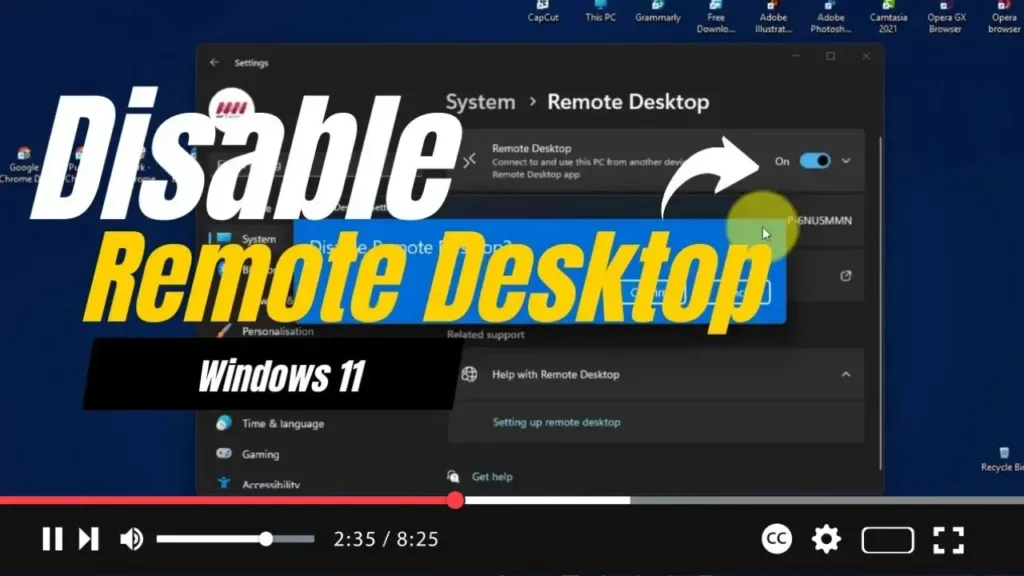

If you don’t utilize Remote Desktop on your Windows 11 computer, disabling this feature is highly recommended. Doing so minimizes the risk of unauthorized access to your system, as Remote Desktop allows remote access through the Remote Desktop Protocol (RDP). This guide will walk you through the steps to effectively disable Remote Desktop via the Settings app.
Introduction
Remote Desktop is a powerful tool that enables users to access their computers from different locations. While it provides flexibility and convenience, it can also pose security risks if your credentials are compromised. If you have no need for this feature, it’s prudent to disable it to protect your system from potential threats.
Steps to Disable Remote Desktop on Windows 11
Step 01: Open Settings
Begin by pressing Windows + I to launch the Settings app on your Windows 11 device.
Step 02: Navigate to System Settings
In the Settings interface, select System from the left-hand menu.
.webp)
Step 03: Access Remote Desktop Settings
Scroll down and click on the Remote Desktop option located under the System settings. This will open the Remote Desktop configuration page.
Step 04: Disable Remote Desktop
Find the Remote Desktop toggle switch and turn it off to disable the feature.
Step 05: Confirm the Action
A confirmation dialog will prompt you to verify your action. Click the Confirm button to finalize the process of disabling Remote Desktop.
Conclusion
By following the steps outlined above, you can successfully disable Remote Desktop on your Windows 11 computer. This simple action significantly enhances your system’s security by preventing unauthorized remote access attempts.
.webp)
Additional Information
-
Remote Access Security: Disabling Remote Desktop is a crucial measure in securing your computer, particularly if remote access is not a requirement for your activities. This step can protect sensitive information from potential threats.
-
Re-enabling Remote Desktop: Should you require Remote Desktop functionality in the future, re-enabling it is straightforward. Simply follow the same steps and toggle the switch back on.
-
Alternative Remote Access Solutions: If you occasionally need remote access, consider utilizing secure third-party remote access tools. Many of these tools provide additional security features and better control over remote sessions.
Disabling Remote Desktop is a proactive step toward safeguarding your Windows 11 computer against potential remote access threats. By following these guidelines, you can ensure that your system remains secure and that unauthorized users cannot gain access.

